
SMA Bahasa Inggris: Pertanyaan, Jawaban, Latihan Soal & Pembahasan
Urutkan
Simon B
02 Juli 2022 04:36

1

Daphne B
02 Juli 2022 04:35
2
Eloise B
02 Juli 2022 04:35
1
Simon B
02 Juli 2022 04:35
1
Anthony B
02 Juli 2022 04:35
1
Daphne B
02 Juli 2022 04:34
4
Eloise B
02 Juli 2022 04:34
1
Simon B
02 Juli 2022 04:34
1
Anthony B
02 Juli 2022 04:34
1
Daphne B
02 Juli 2022 04:34
1
Text 1: An Announcement about Concert Cancellation
Answer the following questions briefly.
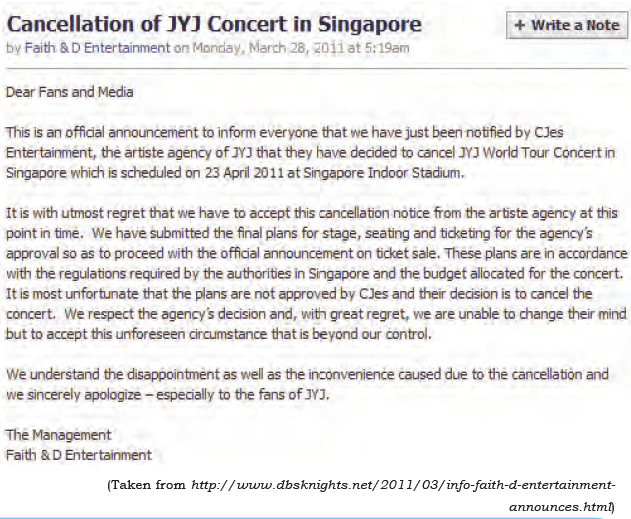
What has the Faith & D Entertainment Management submitted to CJes Entertainment?
Pembahasan:
1
3.5
Text 1: An Announcement about Concert Cancellation
Answer the following questions briefly.
Has there been an announcement regarding ticket sale? Why do you think so?
Pembahasan:
1
3.5
Task: Fill in the blanks.
Use the words in the box to complete the sentence. The first letter of the word is given as clue. Some words can be used more than once.
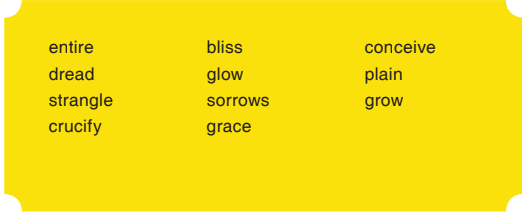
We will always remember the joys and s___ that we have shared together during our community service helping the victim of the landslide.
Pembahasan:
1
5.0
How to Operate Photoshop: Tutorial for Beginners
When you open Photoshop for the first time, it's easy to click around in confusion for a minute and then reach for your freelancer's phone number instead. With a little help, you can easily teach yourself how to use it to create beautiful, compelling graphics. All it takes is an introduction to core elements. To get you started, you need to understand how the five most important Photoshop tools work. The five tools are the Layer Tool, the Color & Swatches Tool, the Custom Fonts and the Text Tool, Custom Brushes & the Brush Tool and the Crop Tool.
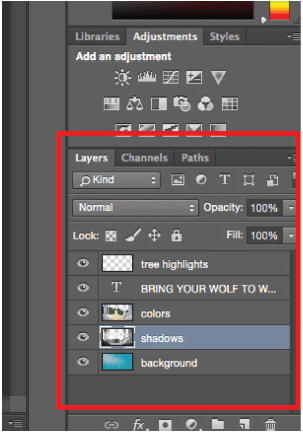
First, recognize how a layer tool works. A layer can be used for an image, text, brush strokes, background colors, patterns, and filters. Layers are by far the most important element of Photoshop. Always name your layers. Keeping them organized will help keep you sane, especially if you find yourself working on a project with a large number of layers.
With layers, you can select, add, delete, and duplicate them. You can also do all sorts of cool things, such as, making animated pictures.
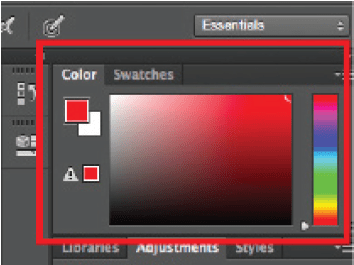
Then, make sure you know how the Color & Swatches Tool operates. The tool lets you use, modify, copy, and save custom colors for your content. It has powerful features that will keep your visual content vibrant and unify your color schemes. To create your own custom color, open the Color Picker by double-clicking on the top box either in the Color module, or in that menu on the left. Then, you'll see a vertical spectrum of color with a slider on it, which you can adjust to create your own custom color.
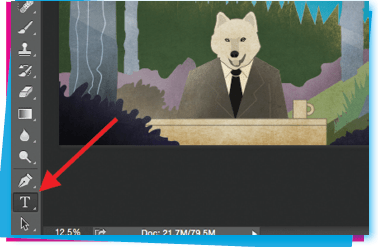
Third, change texts using the Custom Fonts and the Text Tool. The tools let you add custom fonts to your database, and it gives you access to advanced font settings that give your text some serious style. Once you click the Text tool icon, all of the settings and font options will pop up at the top of your screen. These settings let you change the font, font size, and spacing between characters, height, width, color, and style. Be sure to select the layer of your desired text to edit it. To add text to your graphic, click the "T" icon on the left side bar, drag the text box over any particular area you want text to appear, and you're set to go.
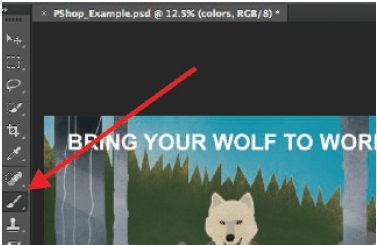
Fourth, to achieve a number of different visual effects, change the size, shape, and transparency of your brush strokes using Custom Brushes & the Brush Tool. Once you click the Brush tool icon, all of the settings and brush options will pop up at the top of your screen. These settings let you change the brush size, opacity, flow, and so on. You'll find a variety of pre-installed brush tips, as well as any custom brush tips you install to Photoshop.
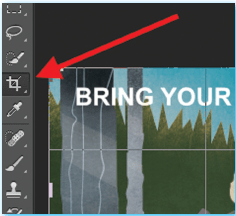
The next tool to use in Photoshop is Crop Tool. The Crop tool lets you crop an image. It works like any crop tool you've ever encountered: simply choose your area and crop it out. To use the Crop tool, select the icon indicated in the screenshot from the side menu bar, and drag the box over the area you would like to crop. To adjust the crop box, simply click and drag the small anchor boxes on the sides and corners of the crop box.
(Adapted from: blog.udemy.com/how-to-use-photoshop/)
Answer the following questions by referring to the text about photoshop above.
What should you do to add text to your photo?
Pembahasan:
2
5.0
Task: Fill in the blanks.
Use the words in the box to complete the sentence. The first letter of the word is given as clue. Some words can be used more than once.
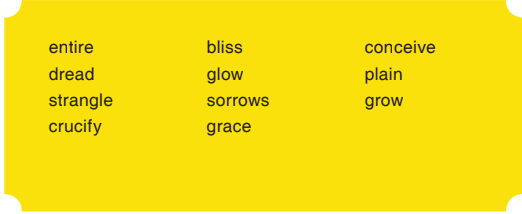
Greed and selfishness may c___ somebody’s soul that makes a person unaware of his or her surroundings. A greedy and selfish person will eventually live a lonely life because he or she cares for no one but himself or herself.
Pembahasan:
1
5.0
Task 2: Do the project in groups.
There are problems in this world out there and in our own environment, such as in our neighborhood and schools. Work in groups of three to four students. Identify problems in your surroundings.
Is it easy to cross the street in front of the school?
Pembahasan:
1
3.0
Use the appropriate words in the box below to complete the sentences.
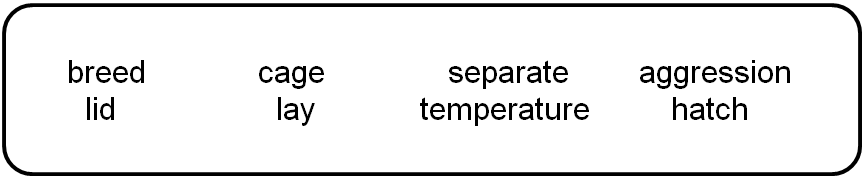
On the ___ of the plastic container is a wooden sculpture of an animal.
Pembahasan:
3
5.0
How to Operate Photoshop: Tutorial for Beginners
When you open Photoshop for the first time, it's easy to click around in confusion for a minute and then reach for your freelancer's phone number instead. With a little help, you can easily teach yourself how to use it to create beautiful, compelling graphics. All it takes is an introduction to core elements. To get you started, you need to understand how the five most important Photoshop tools work. The five tools are the Layer Tool, the Color & Swatches Tool, the Custom Fonts and the Text Tool, Custom
Brushes & the Brush Tool and the Crop Tool.
First, recognize how a layer tool works. A layer can be used for an image, text, brush strokes, background colors, patterns, and filters. Layers are by far the most important element of Photoshop. Always name your layers. Keeping them organized will help keep you sane, especially if you find yourself working on a project with a large number of layers.
With layers, you can select, add, delete, and duplicate them. You can also do all sorts of cool things, such as, making animated pictures.
Then, make sure you know how the Color & Swatches Tool operates. The tool lets you use, modify, copy, and save custom colors for your content. It has powerful features that will keep your visual content vibrant and unify your color schemes. To create your own custom color, open the Color Picker by double-clicking on the top box either in the Color module, or in that menu on the left. Then, you'll see a vertical spectrum of color with a slider on it, which you can adjust to create your own custom color.
Third, change texts using the Custom Fonts and the Text Tool. The tools let you add custom fonts to your database, and it gives you access to advanced font settings that give your text some serious style. Once you click the Text tool icon, all of the settings and font options will pop up at the top of your screen. These settings let you change the font, font size, and spacing between characters, height, width, color, and style. Be sure to select the layer of your desired text to edit it. To add text to your graphic, click the "T" icon on the left side bar, drag the text box over any particular area you want text to appear, and you're set to go.
Fourth, to achieve a number of different visual effects, change the size, shape, and transparency of your brush strokes using Custom Brushes & the Brush Tool. Once you click the Brush tool icon, all of the settings and brush options will pop up at the top of your screen. These settings let you change the brush size, opacity, flow, and so on. You'll find a variety of pre-installed brush tips, as well as any custom brush tips you install to Photoshop.
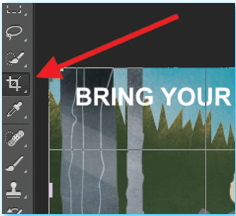
The next tool to use in Photoshop is Crop Tool. The Crop tool lets you crop an image. It works like any crop tool you've ever encountered: simply choose your area and crop it out. To use the Crop tool, select the icon indicated in the screenshot from the side menu bar, and drag the box over the area you would like to crop. To adjust the crop box, simply click and drag the small anchor boxes on the sides and corners of the crop box.
(Adapted from: blog.udemy.com/how-to-use-photoshop/)
Answer the following questions by referring to the text about photoshop above.
How many Photoshop tools are introduced in the text above?
Pembahasan:
3
5.0
Find a procedure text. In groups, find a procedure text about how to make something or how to do something. You can go to the library or search in the Internet. Use the following questions to help you select the text.
What are the steps to take?
Pembahasan:
1
4.0
Use the appropriate words in the box below to complete the sentences.
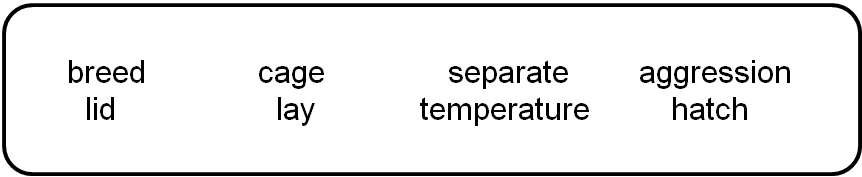
Salamanders are oviparous and ____ large eggs in clumps in water.
Pembahasan:
1
5.0

RUANGGURU HQ
Jl. Dr. Saharjo No.161, Manggarai Selatan, Tebet, Kota Jakarta Selatan, Daerah Khusus Ibukota Jakarta 12860
Coba GRATIS Aplikasi Roboguru

Coba GRATIS Aplikasi Ruangguru


Produk Ruangguru
Bantuan & Panduan
Hubungi Kami


Ikuti Kami


©2026 Ruangguru. All Rights Reserved PT. Ruang Raya Indonesia